Acumatica 2026 R2 Upgrade Checklist (Modern UI Ready)
A practical Acumatica 2026 R2 upgrade checklist: business-process testing, EDI, payment and WMS sign-off, and Modern UI readiness before you go live.
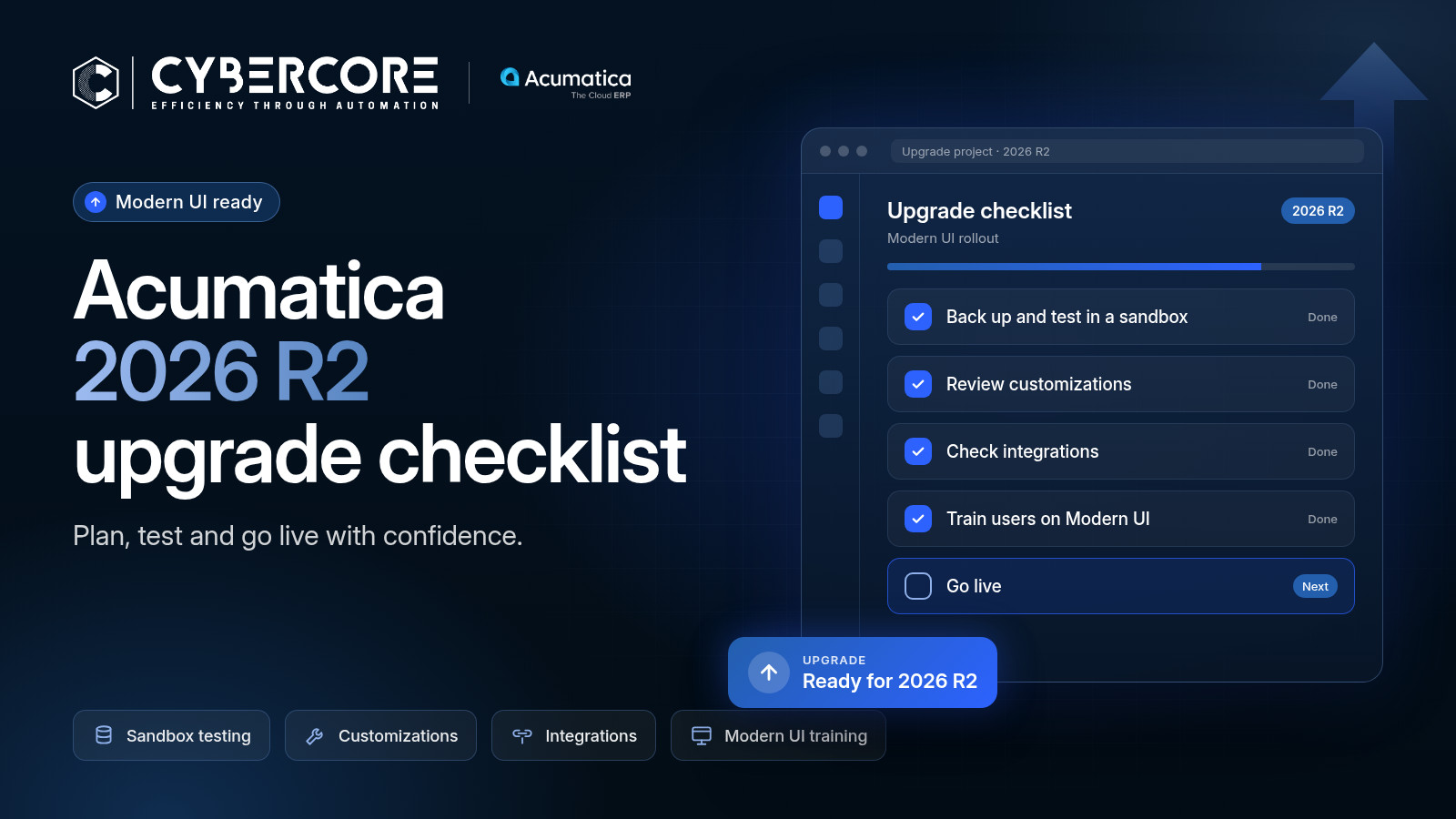
Acumatica 2026 R2 was released on October 1, 2026. In our September preview we said you shouldn't upgrade just because a new version exists. In our October 4 overview we covered what's new and which areas to review before you move production.
This post is the next step: an operational checklist covering who does what, in what order, and what "ready" looks like before you schedule the production upgrade.
The Interface Facts That Shape Your Plan
Our October 4 post explained that Modern UI is now the default. A few details from Acumatica's Classic UI deprecation FAQ matter most for planning:
- You can't turn Modern UI off in 2026 R2. Acumatica says Classic UI can't be enabled in 2026 R2 or later "under any circumstances," whatever your support tier.
- Classic-only screens get one more release. Screens without a Modern UI version still open in Classic UI in 2026 R2, with a warning. Starting with 2027 R1 they won't be accessible at all.
- Your data isn't affected. Acumatica describes the switch as an interface change only. Customized screens that weren't migrated properly can still display data incorrectly.
- Add-ons can block the upgrade. If an ISV solution doesn't support Modern UI, Acumatica says upgrading to 2026 R2 "may not be possible until compatibility is confirmed."
Step 1: Modern UI Readiness
Acumatica strongly recommends switching to Modern UI before upgrading to 2026 R2. You can switch the whole site under System Management > System Preferences > Site Preferences, or switch individual screens from the Tools (gear) menu.
- Inventory every customization: custom screens, modified standard screens, custom fields, reports, Generic Inquiries, dashboards and pivot tables.
- Decide what happens to each screen: keep it as-is, convert it with Acumatica's tool, rebuild it, or retire it if nobody uses it anymore.
- Have a person review every converted screen. Check that the fields, grids and buttons your team relies on are all there, then test the screen in a real process.
- Plan for custom fields. RAD Associates notes that custom fields need an extra low-code configuration step to appear on Modern UI screens.
- Train your users. Modern UI looks and navigates differently, so plan short training sessions for each team before go-live.
Step 2: Business-Process Testing
Acumatica's preparation checklist is aimed at administrators; your business needs its own test plan. Upgrade a Lab or Test environment, then have the people who do the work run their real processes end to end:
- Order to cash: quote, sales order, credit check, payment, pick, pack, ship, invoice, cash application.
- Procure to pay: purchase order, receipt, vendor bill, payment.
- Inventory and warehouse: receiving, putaway, transfers, cycle counts, scanner workflows.
- Manufacturing (if it applies): production orders, material issues, completions.
- Period end: month-end close steps, financial reports, and the Generic Inquiries and dashboards your managers rely on.
- Security: test as real user roles, not just as an administrator.
Log every issue with an owner and a resolution, and agree on what must pass before the production date is set.
Step 3: Integration Sign-Off (EDI, Payments, WMS)
RAD Associates reports that some credit card processors and ISV add-ons haven't finished their Modern UI compatibility work. They recommend asking each vendor directly and getting the answer in writing. We'd turn that into a formal sign-off for each integration:
EDI
- What to confirm: Supports 2026 R2 and Modern UI. Inbound orders, acknowledgments, ship notices and invoices flow correctly for each trading partner.
- Sign-off evidence: A written vendor statement, plus test transactions you've reviewed in the test environment
Payments
- What to confirm: The processor's Acumatica integration supports Modern UI. Card, ACH, refund and payment-link flows (whichever you use) post correctly.
- Sign-off evidence: A written vendor statement, plus test payments that reconcile to invoices
WMS / scanning
- What to confirm: Scanner screens, picking, receiving and shipping confirmations work, and inventory quantities match.
- Sign-off evidence: Warehouse supervisor sign-off after a full test shift of transactions
Ecommerce, tax, other ISVs
- What to confirm: Each add-on's 2026 R2 / Modern UI status
- Sign-off evidence: A written vendor statement for each one
If you run CyberCore EDI for Acumatica, our credit card processing solution or a warehouse management (WMS) integration we support, our team includes those in the same test cycle. If a vendor can't confirm compatibility, that's a blocker, not a footnote.
Worked Example: A Distributor Preparing for R2
Imagine a distributor that receives most of its large-customer orders through EDI, takes card payments on some accounts and runs scanner-based picking in the warehouse. It also has a few custom screens built years ago.
- Inventory: IT lists every customization and add-on. Two custom screens turn out to be unused, so they go into the "retire" bucket.
- Vendor letters: the controller asks the payment and WMS vendors for written Modern UI and 2026 R2 statements. The EDI provider confirms trading-partner testing.
- Modern UI first: the team switches the test site to Modern UI, converts and reviews the remaining custom screens, and runs short training sessions for each team.
- Process testing: customer service, purchasing, the warehouse and accounting each run their checklists in the upgraded test environment. That includes a mock month-end.
- Go/no-go: the production upgrade gets scheduled only when EDI, payments and WMS are each signed off with their sign-off evidence collected, and away from month-end.
Step 4: Technical Prep and Go-Live
Acumatica's Beacon preparation checklist covers the administrator steps:
- Back up all configuration files and databases.
- Turn off database replication, if you use it.
- Reschedule any automation processes that would run during the update (Automation Schedule Statuses, SM205030).
- Run Optimize Database (Tenants, SM203520).
- Schedule the system lockout and validate your published customizations (Apply Updates, SM203510).
After go-live, check the Partner Portal for known Modern UI issues. If a problem blocks your move away from Classic UI, say so clearly in your support case; Acumatica's FAQ says that helps it get prioritized.
Once things are stable, you can start on the new R2 capabilities where they solve a real problem. That might include an AI-Voice Employee that handles routine calls so your team can focus on exceptions and customers.
Honest Caveats
- Every environment is different. Timelines and effort depend on your customizations, add-ons and integrations.
- Vendor readiness is outside your control. One unready add-on can hold up the whole upgrade, so ask early.
Plan Your 2026 R2 Upgrade With CyberCore
As an Acumatica Gold Certified partner, our team can review your environment, organize the Modern UI work, coordinate integration sign-offs and help you choose a sensible upgrade window.
Book a Call or call us at (888) 521-1801.
Sources
- Acumatica Community, "Announcement: Classic UI Deprecation in 2026 R2 and FAQ": https://community.acumatica.com/acumatica-news-updates-2/announcement-classic-ui-deprecation-in-2026-r2-and-faq-34835
- Acumatica Beacon, "Update of Acumatica ERP: Preparation Checklist": https://beacon.acumatica.com/r/System-Administration-Guide/Updating-Acumatica-ERP-by-Using-the-Web-Interface/Update-of-Acumatica-ERP-Preparation-Checklist?contentId=jHM5k7xpLgktM1AGYAstIQ
- Acumatica Beacon, "Updating Customization Projects to Acumatica ERP 2026 R2": https://beacon.acumatica.com/r/Customization-Update-Guide/Updating-Customization-Projects-to-Acumatica-ERP-2026-R2
- RAD Associates, "Classic UI Is Going Away in 2026 R2": https://www.rad-associates.com/articles/classic-ui-is-going-away-in-2026-r2-heres-what-you-need-to-do-now
- CyberCore, "Acumatica 2026 R2: What Businesses Should Know Before the October Launch": https://cloudcybercore.com/post/acumatica-2026-r2-preview
- CyberCore, "Acumatica 2026 R2: AI, Automation & Analytics": https://cloudcybercore.com/post/acumatica-2026-r2-ai-automation
.webp)